Media Grid Widget
Overview
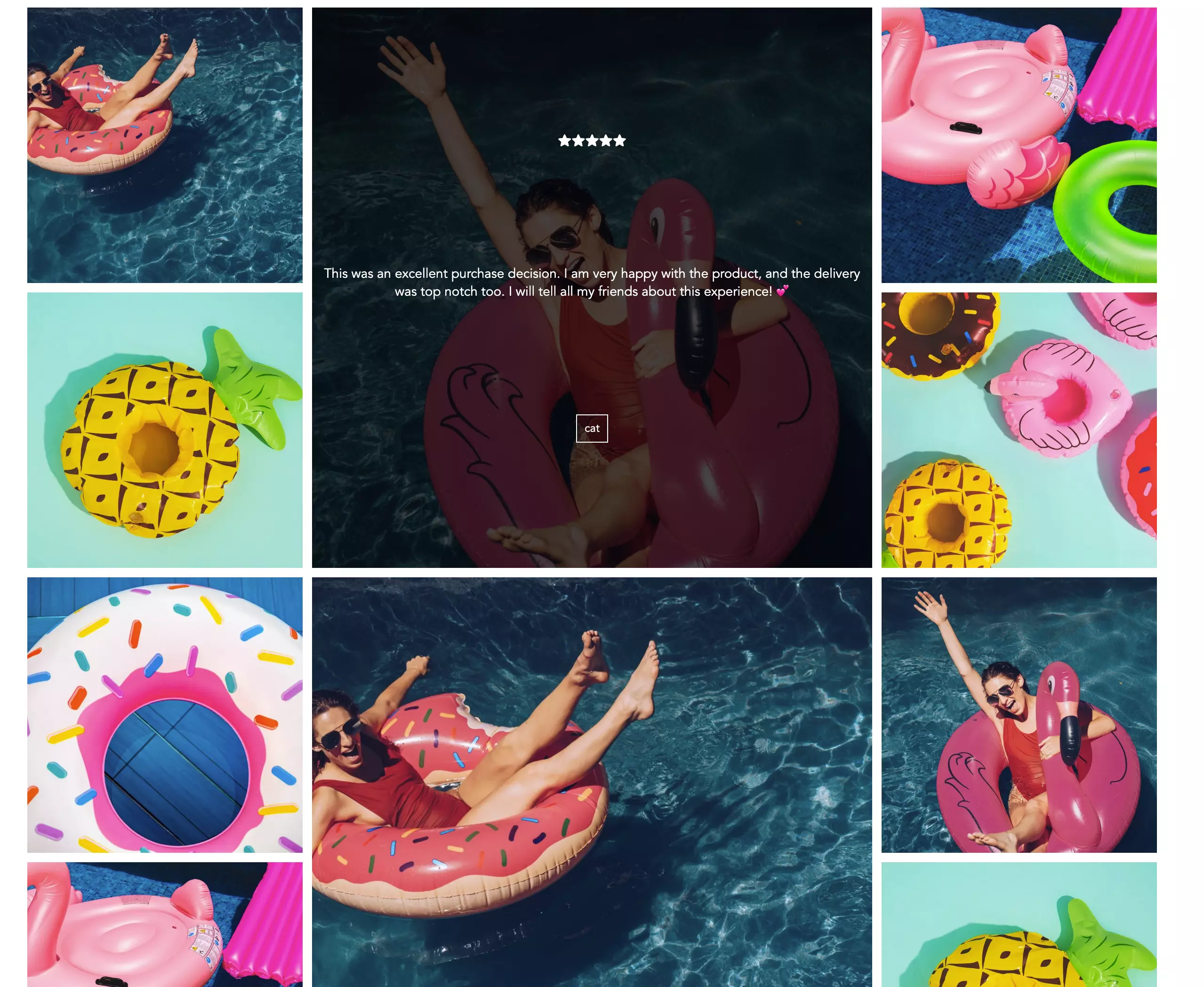
Promote a sense of brand community with a media gallery widget that displays customer-generated photos and videos in a large, high-impact media grid. Available in a variety of different styles, the Media Grid can also show approved UGC from Foursixty.
Installation
- Shopify Online Store 2.0
- Shopify Vintage Theme
Instructions for a Shopify Online Store 2.0 installation can be found here.
-
Create a new liquid snippet in the
snippetsfolder with the following name:snippets/okendo-reviews-media-grid.liquid -
Inside your newly created liquid file, add the following HTML snippet:
<div data-oke-media-grid></div>
-
Customize your snippet with the data attributes listed here.
-
Copy the following snippet and place it in your Theme Code where you would like the widget to appear:
{% render 'okendo-reviews-media-grid' %}
Styling
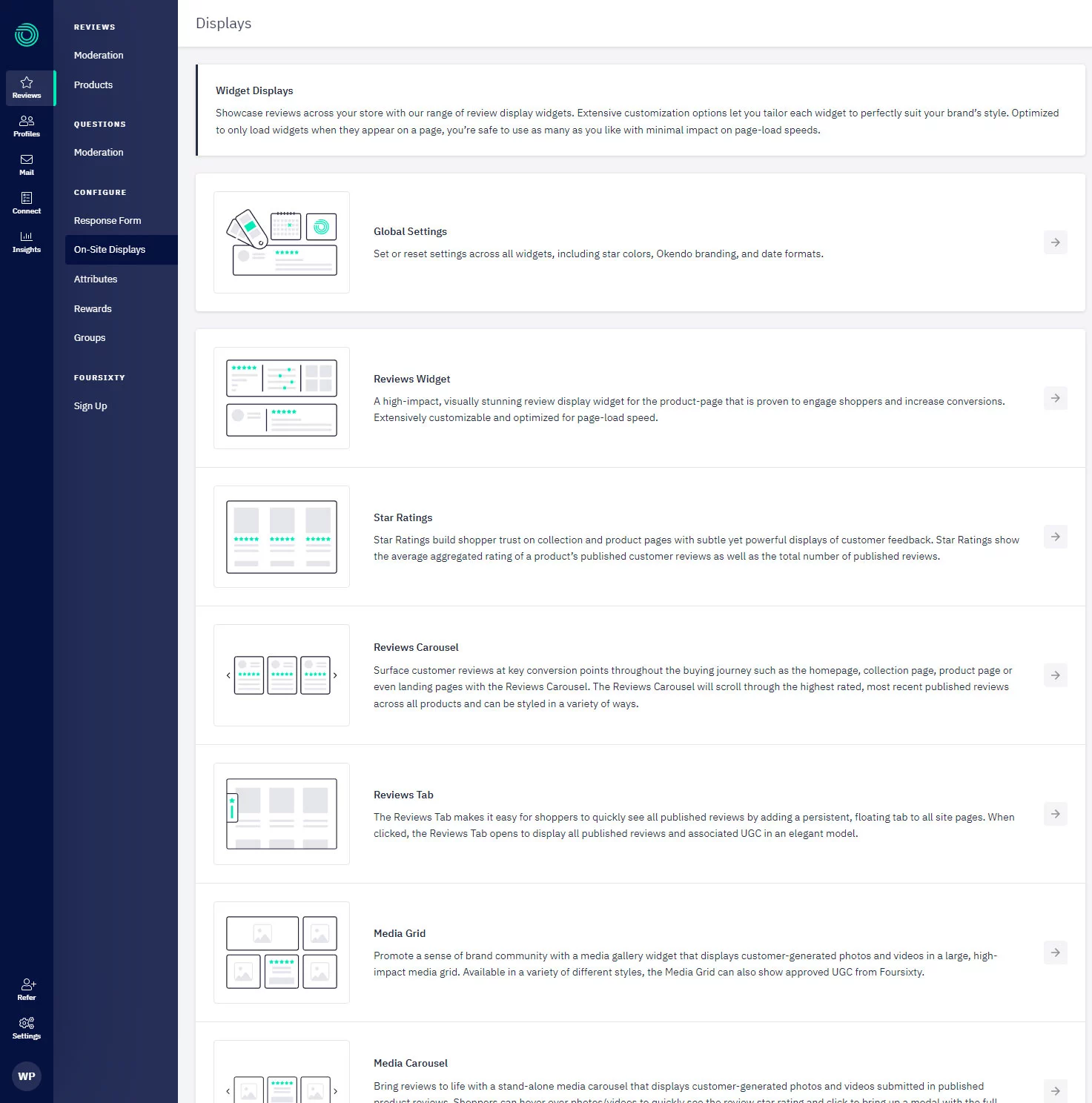
The preferred method of configuring the Media Grid is via the Okendo Admin which can be accessed in the Okendo app via Reviews → On-Site Displays:
Data Attributes
| Data Attribute | Description | Value Type | Supported Values | Required |
|---|---|---|---|---|
data-oke-reviews-product-id | Used to specify a Shopify Product ID with the word shopify- in front of it. The media grid widget will only show media for the specified product. | string | Any valid product ID in the format shopify- e.g. shopify-1234567. | |
data-oke-reviews-group-id | Used to specify an Okendo Group ID so that the media grid widget only shows media for the specified group of products. | string | Any valid product group ID in a GUID format e.g. 69d2e67d-b980-4333-97b7-30411807a7b1 |
Examples
Giving The Widget A Data Source
Without specifying a data source for the media, the widget will show all media for your store. You can provide either a Product ID or a Group ID to use that as the data source for the media.
Product Widget
If you are using liquid, use the following snippet:
<div
  data-oke-carousel
  data-oke-reviews-product-id="shopify-{{ product.id }}"
></div>
The general format for other frameworks is:
<div data-oke-carousel data-oke-reviews-product-id="shopify-<PRODUCT_ID>"></div>
Group Widget
Learn more about Okendo Groups here:
If you are using liquid or general frameworks, use the following snippet:
<div data-oke-carousel data-oke-reviews-group-id="<GROUP_ID>"></div>
Group ID is found in the Okendo Admin URL for a given group as described in the table above.